
LOCUS Tips and Tricks

LOCUS is an essential tool for students to use to complete necessary tasks for several departments around campus. You will learn more about it in your time this summer and when you arrive on campus in the fall. This section focuses on how to use LOCUS to find and register for courses this summer, similar to how you will register for all future semesters.
There are many different ways to search, so getting comfortable with filtering results now will help you become more confident in the process. We suggest viewing this video for some basic information about using LOCUS search.
For any class search, you can log in to LOCUS and click on the “Manage Classes” tile. Select “Class Search” from the left-hand menu and the term you want to view from the drop-down menu.
Important Advising Note on Finding Classes and Common Errors:
When searching for classes, be sure to view the class notes and description in LOCUS. You can do this by clicking the section or class number for any class after you run a search.
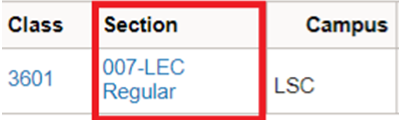
This will allow you to view important details about the course as well as any required pre-requisites, co-requisites, or restrictions. 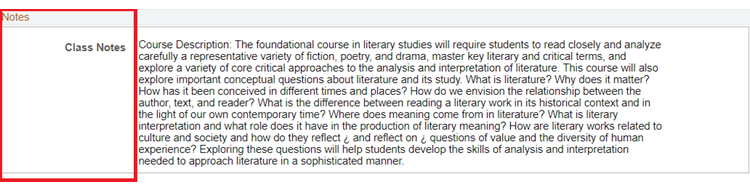

If you attempt to enroll in a class you are not eligible for, LOCUS will give an error message indicating “Error: Unable to add this class – requisites have not been met” as well as information explaining what conditions are necessary for enrollment. For example, the error message below says that a student does not meet the pre-requisites for the course because they are not a Senior and/or have not passed the list of required courses.

Check the bottom of this page for a list and explanation of the most common errors students encounter in LOCUS.
Below, we have gathered the most common pieces of information on how to search LOCUS and what some of the most common errors mean. When in doubt, you can always consult your summer advising team or a SOAR leader for help.
Common Searches in LOCUS
Avoid Arrupe Classes
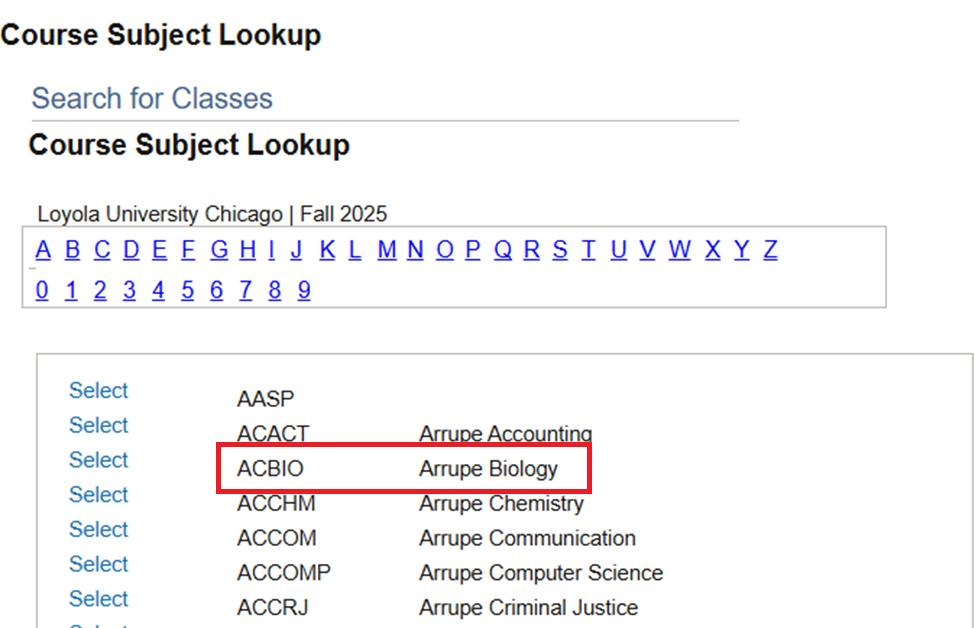
Be sure to avoid “Arrupe” course subjects, since those are not an option for traditional undergraduate students at Loyola. Arrupe classes can be identified by the word “Arrupe” in the title and the AC at the start of the subject code (such as ACBIO in the image below).
Searching for a Specific Class
If you are searching for a specific class (such as one that is required for your major), include the three/four-letter code for the subject and the course number. For example, searching for Biology 101 would look like the screenshot below:
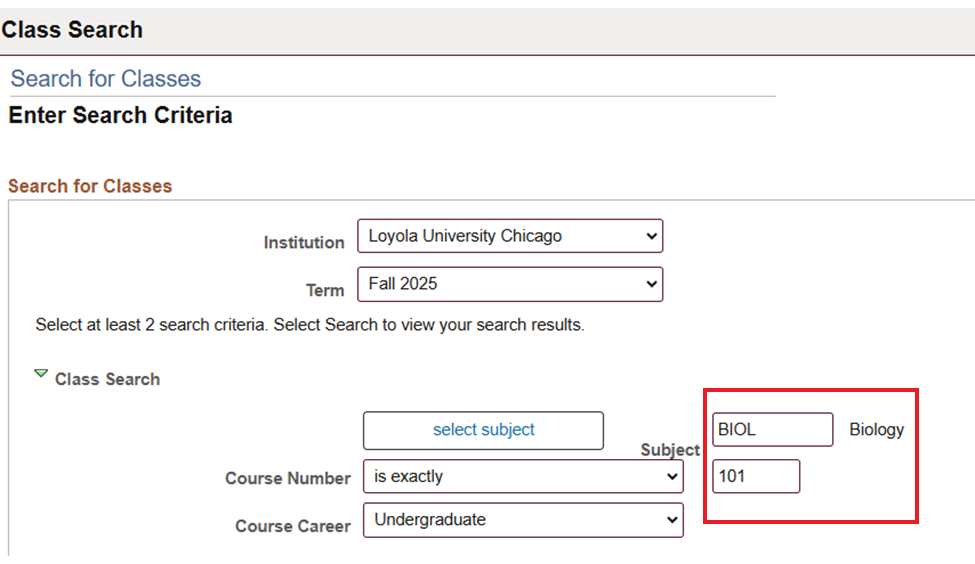 If you do not know the subject code, you can use the “Select Subject” menu.
Searching for Available Options in a Core Area
If you want to look for options for a class in a Core subject area (rather than a specific class), you can use the Core area filter by selecting “Core 2012” from the CORE/Intrscpl. drop down menu and the specific tier and subject from the CORE/Intrscpl. Values drop down menu. For example, searching for Tier One (Foundational) Historical Core would look like the image below:
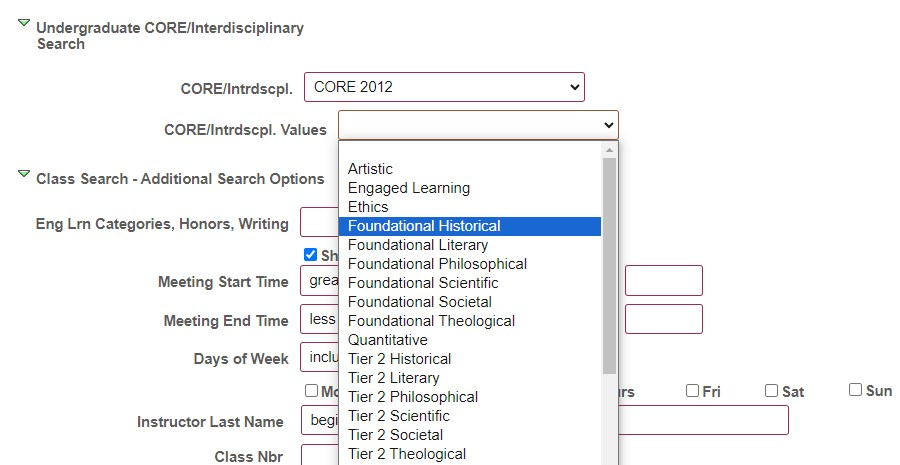
This search would show any of the courses that fulfill the Foundational Historical Core area and are currently open for enrollment.
Searching for Classes Based on Location
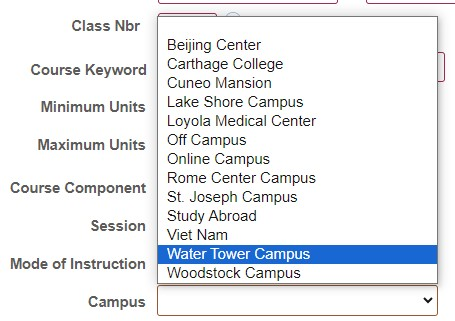
If you want to search for a class based on a specific campus, you can use the “Campus” filter in LOCUS and select the campus you are looking for. This may be valuable for students who are required to take classes at Water Tower campus for their major and may want to look for Core courses on that campus as well.
Searching for Classes Based on Time or Modality
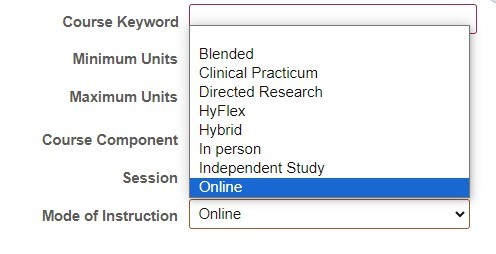
If you are looking for classes that are offered in a specific modality (such as, online), you can filter your results in LOCUS. Please be aware that most Loyola classes are offered in person and it is extremely unlikely that undergraduate students would be eligible to enroll in any online courses offered during Fall or Spring semesters. Information on enrollment restrictions are available under the class notes for a specific online course.
If you want to search for a class based on a specific modality, you can use the “Mode of Instruction” filter in LOCUS and select the mode you are looking for.
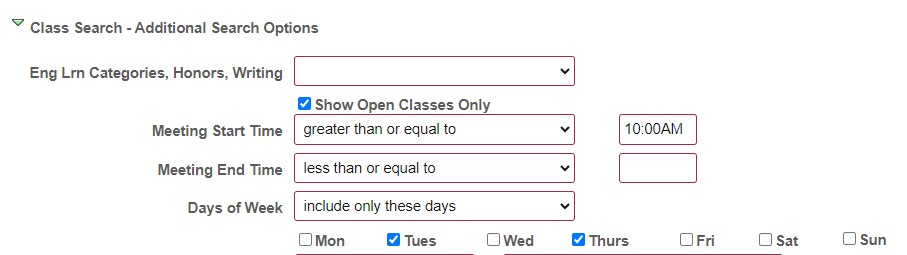
If you are looking for classes that are offered at a specific time of day, you can use the “Meeting Start” or “Meeting End Time” filters in LOCUS and select the time you are looking for. Please note that you will need to specify a range of time (greater than/less than) or exact start or end time.
Common Errors Students Experience
Co-requisites Error
One or more of the listed courses must be taken at the same time and the student is not currently enrolled in the listed co-requisite.
Department Consent or Instructor Consent Error
The course requires permission for a student to enroll in it. Sometimes, departments use this feature to pause enrollment in a course while they manage something behind the scenes. When it is the case that permission is truly needed, it is usually required that the permission come from the Undergraduate Program Director of the department to which the course belongs.
Major, Minor, School, or College Restriction Error
The course is only available to students who have a declared major or minor (or are in a specific School/College).
Math Placement Error
If the error mentions that a math course or math placement is a pre-requisite, the student needs to establish their math placement before enrolling.
No Active Enrollment
This error means that the student does not have an open registration at this time. If you are an incoming first-year student trying to register for fall courses between June 23rd and 27th, please reach out to your advising team to troubleshoot this issue. If you aren't sure when your enrollment window begins, ask your advising team or work with a SOAR leader to learn how to find it on LOCUS.
Not in Active Status Error
This means that, even if LOCUS shows seats available, the class has reached its fire code capacity for the room that it's scheduled in, and no one else can be added to the class. If you receive this error, please report it to your advising team so that they can ask to have the error corrected.
Pre-requisites Error
The student has not yet completed one or more of the courses that need to be taken in preparation for this course and/or the student's grade in one or more of the courses wasn't high enough. Students can also receive this error if they haven't yet earned enough credit to be at a specific level (30 credits for Sophomore, 60 credits for Junior, 90 credits for Senior).
Rambler Success Program (RSP) Error
This means that only students in the Rambler Success Program are eligible to enroll in this class.
School of Continuing and Professional Studies (SCPS) Error
This means that only students in the School of Continuing and Professional Studies are eligible to enroll in this class.
Writing Placement Error
If the error mentions that a writing placement of UCWR 110 is a pre-requisite, the student needs to establish their writing placement before enrolling.
LOCUS is an essential tool for students to use to complete necessary tasks for several departments around campus. You will learn more about it in your time this summer and when you arrive on campus in the fall. This section focuses on how to use LOCUS to find and register for courses this summer, similar to how you will register for all future semesters.
There are many different ways to search, so getting comfortable with filtering results now will help you become more confident in the process. We suggest viewing this video for some basic information about using LOCUS search.
For any class search, you can log in to LOCUS and click on the “Manage Classes” tile. Select “Class Search” from the left-hand menu and the term you want to view from the drop-down menu.
Important Advising Note on Finding Classes and Common Errors:
When searching for classes, be sure to view the class notes and description in LOCUS. You can do this by clicking the section or class number for any class after you run a search.
This will allow you to view important details about the course as well as any required pre-requisites, co-requisites, or restrictions.
If you attempt to enroll in a class you are not eligible for, LOCUS will give an error message indicating “Error: Unable to add this class – requisites have not been met” as well as information explaining what conditions are necessary for enrollment. For example, the error message below says that a student does not meet the pre-requisites for the course because they are not a Senior and/or have not passed the list of required courses.
Check the bottom of this page for a list and explanation of the most common errors students encounter in LOCUS.
Below, we have gathered the most common pieces of information on how to search LOCUS and what some of the most common errors mean. When in doubt, you can always consult your summer advising team or a SOAR leader for help.